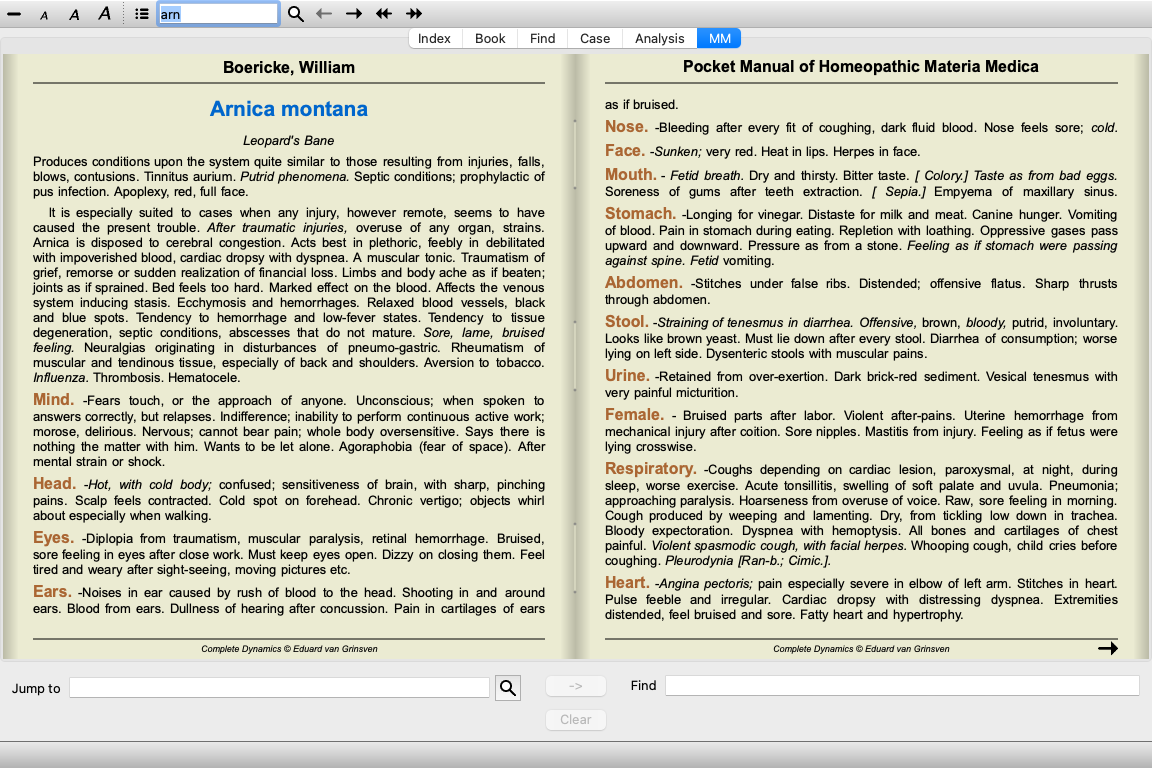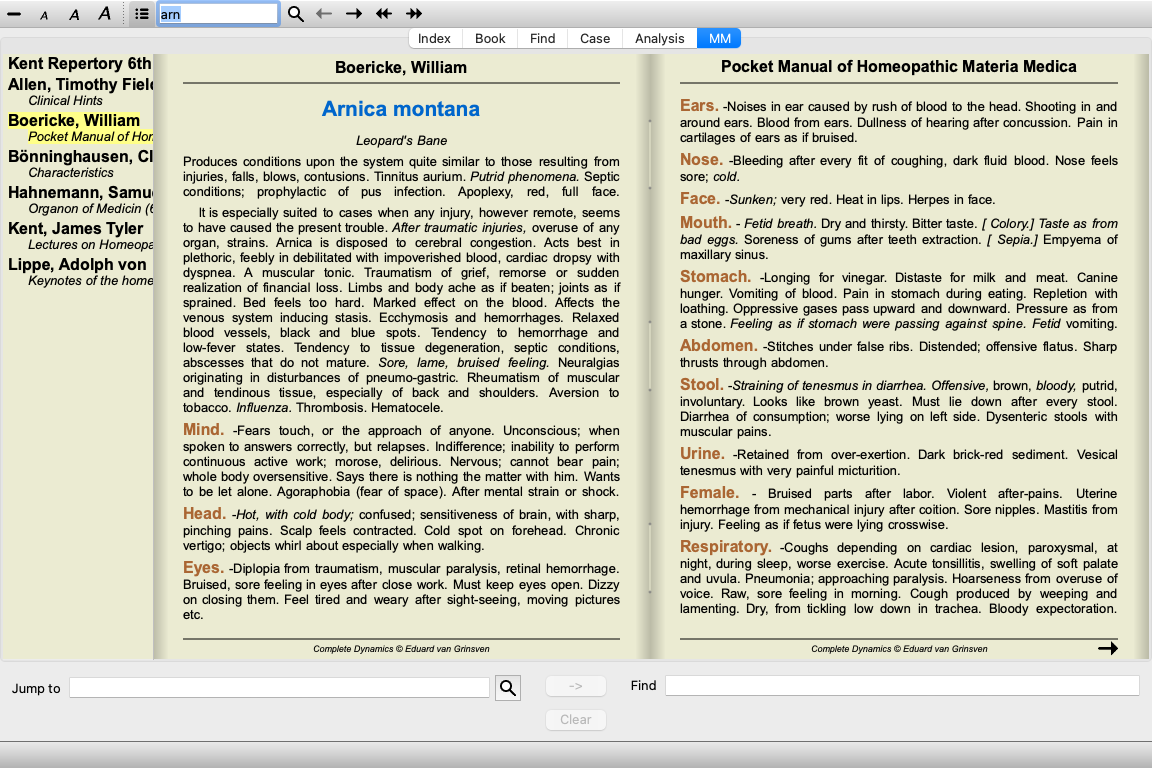
Go to the Materia Medica module by clicking on the MM tab. (Menu option View / Materia Medica, ⌘-M).
You can enter the abbreviation of a remedy in the field above in the Toolbar. If you do not know the abbreviation, you can look up the remedy by pressing the  behind the field.
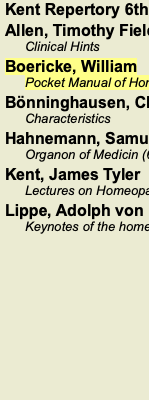
After selecting a remedy, you can choose any of the Materia Medica sources, listed on the left side of the screen. If the selected remedy does not occur in a book, the book title is printed in gray.
If you want to use the maximum space for reading, your can hide the index with toolbar button  .
.
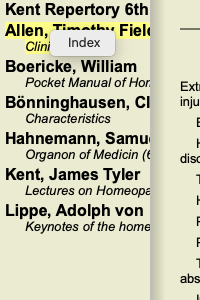
To get an overview of all remedies that are available in a book, open the popup menu on the book title. (Popup menu option Index).
A list with all remedies in the book is shown. You can open the book for a remedy by clicking on the remedy name.
The Reverse Materia Medica will show you the most important symptoms from the repertory for the given remedy, as they are found in the repertory.
No interpretation is done by human experts, like you would normally see in regular Materia Medica, the Reverse Materia Medica is based entirely on the expertise stored in the repertory.
To go to a rubric in the Book module, simply double click on it.
More important symptoms are printed larger than less important symptoms, so you can easily distinguish the relative importance of the various symptoms.
You can modify the results with the following buttons:
Fewer symptoms. More symptoms. Filter In the filter dropdown list, you can select criteria for the rubrics that will be shown in the Reverse Materia Medica:
Automatic An automatic selection is done of the most relevant rubrics. Confirmed Symptoms Only remedies in grade 3 or 4 are used. These indicate symptoms that are confirmed in practice. Red line symptoms Gives preference to symptoms that occur in a related way throughout more parts in the repertory. Keynotes The remedy has grade 3 or 4, but all other remedies have a lower grade. Unique rubrics Show only rubrics where the remedy is the only occuring remedy.
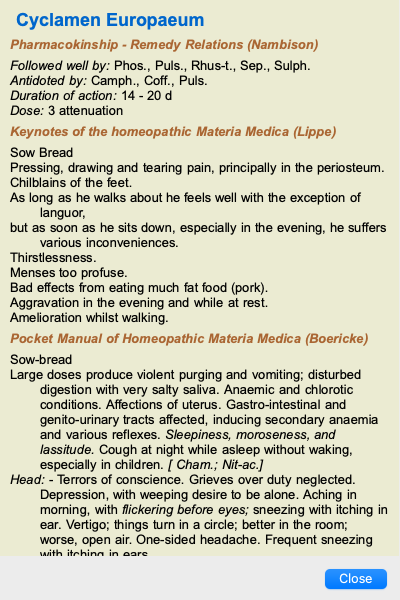
It can be very convenient to quickly see the Materia Medica text of several books at the same time.
The Materia Medica quick view window shows the text of several of the more compact Materia Medica books at the same time. (Menu option View / Materia Medica quick view, popup menu option Materia Medica quick view).
The window will remain open until you explicitly close it. This way you will be able to quickly compare remedies. Another remedy is selected by simply clicking on a remedy name anywhere in the Book, Find, or Analysis modules.